
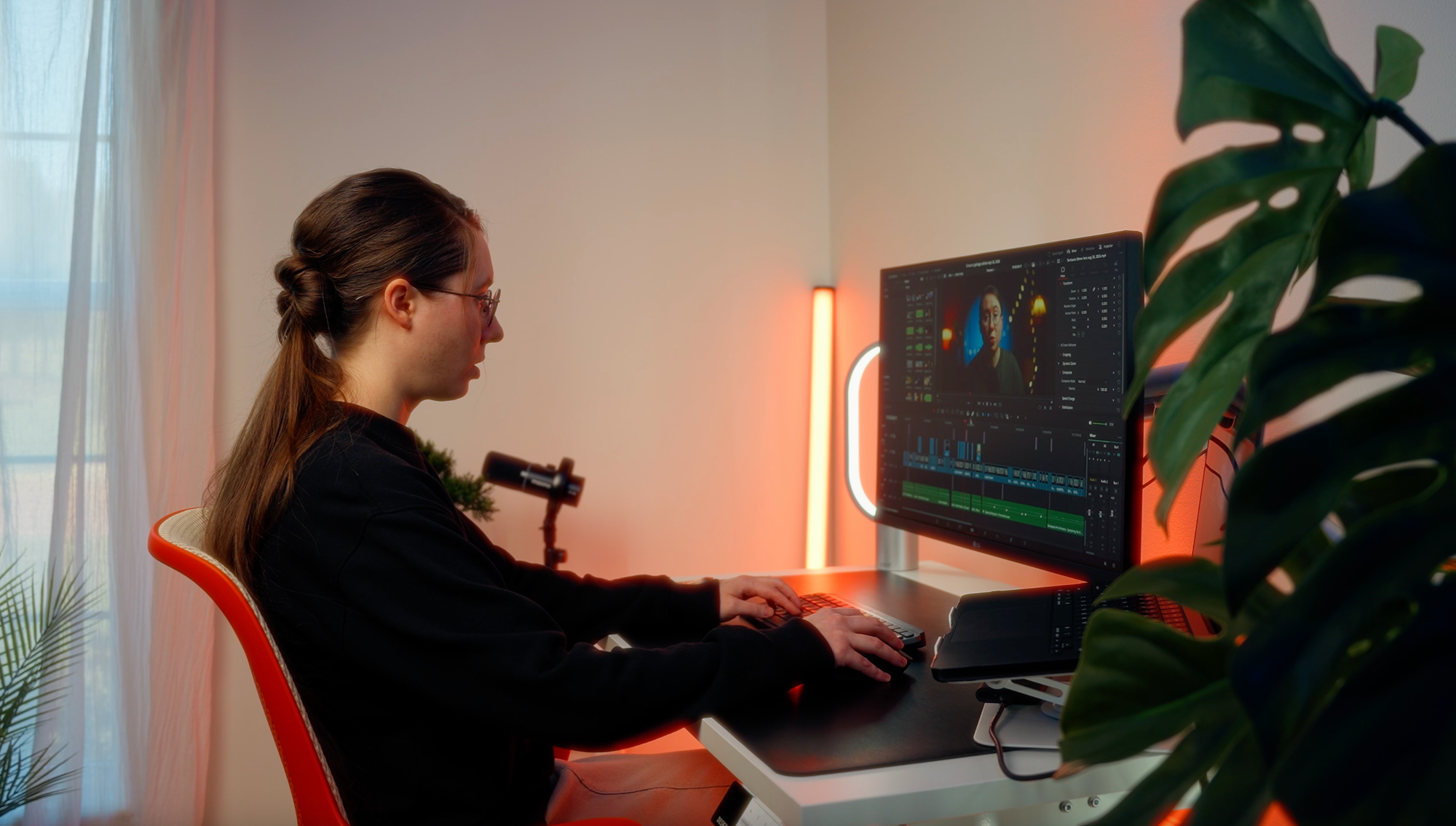
Meet Lex: a seasoned filmmaker, editor, and YouTuber. Having worked as a creative director from 2019 to 2026 and created videos since 2018, Lex knows her way around a timeline. Today, her YouTube channel is dedicated to helping solo creators level up their skills through editing tips, creator setup guides, and filmmaking tutorials.
In this Creator Spotlight, Lex breaks down how she integrated FireCut AI into her DaVinci Resolve workflow to drastically cut down her editing time—including saving an estimated 50% on a massive 43-video client project.
A Seamless DaVinci Resolve Integration
For Lex, the appeal of FireCut was immediate. She integrated the tool into her workflow in July of 2026, and the frictionless experience stood out right away.
"I love how seamlessly it integrates with DaVinci Resolve," Lex explains. "It’s not like other AI tools where you have to import your video in and export out. It works more like a plug-in, and I love that aspect."
Rather than functioning as a walled garden, FireCut acts as a launching pad. It allows Lex to lay down the foundation of a video right inside her native editing environment before going back in to refine the creative details.
Tackling a 43-Video Masterclass
The true test of any editing tool is how it handles heavy workloads. For Lex, FireCut recently proved invaluable on a massive online program for a client.
"Honestly, it would not have been possible without it," Lex shares. "It saved probably half the editing time for a 43-video online program. No joke, half the hours in editing time."
She relies on a few core features to build her initial base layer:
- Silence Remover: This is the first step in Lex’s workflow, allowing her to quickly trim the fat with different parameters tailored to specific projects.
- Titles & B-Roll: For the 43-video project, FireCut’s ability to generate lower-thirds text and pull B-roll from Storyblocks came in "super clutch," laying down a rapid structural foundation.
- Auto-Zooms: Lex frequently uses this feature to easily add dynamic movement to her YouTube videos.
- Supporting Features: She also takes advantage of FireCut’s SFX, music, and caption generation when a project calls for it.
While Lex notes that the tool isn't always perfect and can occasionally miss a prompt, she emphasizes that with every update, it continues to become a faster, more reliable workhorse. On average, she estimates FireCut saves her at least a couple of hours per standard project, empowering her to take on more client work and produce more content for her channel.
The Sweet Spot: Assistive Over Generative AI
Lex’s philosophy on artificial intelligence in the creative space is highly intentional. She isn’t looking for software to do her job for her; she is looking for tools that remove friction so she can focus on the art.
"I prefer to only use AI that is assistive in my process so that I can keep creative control," Lex says, noting that she skips generative photo or video features. "I much prefer assistive AI tools and not AI tools that do all the work for me and produce subpar results."
Lex uses FireCut to construct a solid base layer. Once the software generates elements like lower-thirds titles, she jumps in to add effects and creative overlays, dialing everything in to match her exact vision.
If you are a solo creator or editor on the fence about bringing artificial intelligence into your workspace, Lex’s advice is simple: just try it out. By treating FireCut as a stepping stone to make faster creative decisions rather than a replacement for the editor, you can win back hours of your time while keeping total ownership over your final product.
Ready to speed up your own editing workflow?
Get FireCut AI today using the code LEXTALK to get 10% off on monthly plans and start making faster creative decisions!
FireCut uses AI to help creators make better content, faster.
Available for Premiere Pro, DaVinci Resolve and Web.
Start free trial